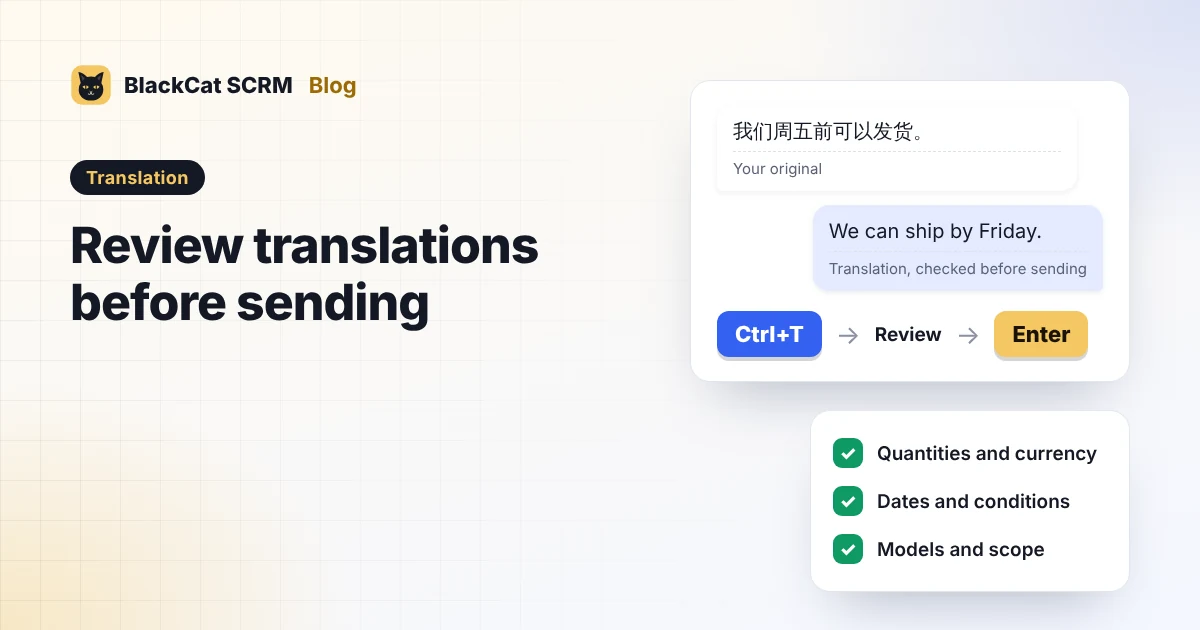
The flow: enable outgoing translation, then turn on “Use translation shortcut.” Ctrl+T places the translation in the editor without sending it. Review it and press Enter to send the current text. The shortcut is configurable, saved per account, and off by default.
Leave a moment to review a translated reply
A customer asks about delivery in English. You draft the answer in Chinese, then translate it into the customer's language. A fluent sentence is a useful start, but quantities, dates and the scope of your promise still need checking.
For example, shipping by Friday and arriving by Friday describe different commitments. Separating translation from sending gives your team a clear place to check those details before a message leaves the typing box.
Set up the translation shortcut in BlackCat SCRM
The translation shortcut is optional and off by default. To use it:
- Select the WhatsApp account and open Translation on the right sidebar.
- Enable outgoing translation and choose the target language, source language and provider.
- Enable Use translation shortcut. The default combination is Ctrl+T.
- Write your original reply and press the shortcut. The translated text is placed in the editor without sending.
- Check and edit the translation, then press Enter to send the current text.
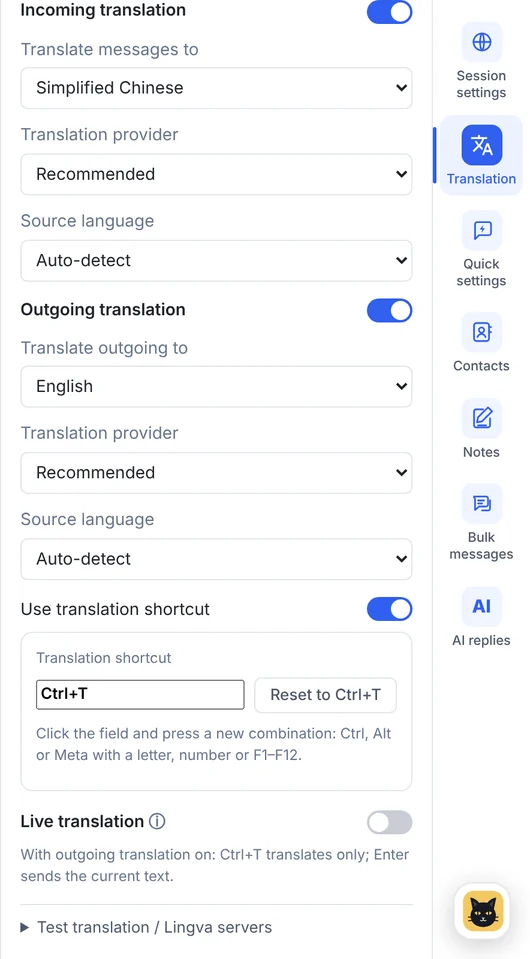
Click the shortcut field and press a different combination to change it. This preference is saved per account. See the product's settings implementation.
In shortcut mode, Enter sends whatever is currently in the editor. If you have not translated it yet, that may still be your original text. With shortcut mode off and outgoing translation on, Enter retains the translate-and-send flow. Agree on the mode your team will use. See the sending behavior.
Check three kinds of information before sending
| Check | What to verify |
|---|---|
| Quantities, units and currency | Item counts, sizes, amounts, decimal points and the currency name. |
| Timing and conditions | Dates, time zones, dispatch versus arrival, and whether stock needs confirmation. |
| Product and service scope | Model numbers, package contents, shipping charges and any exceptions. |
Write specialist terms in full where practical. If the original reply is unclear, clarify it before translating again. Editing the tone of a translation cannot resolve missing business information. Break long replies into short paragraphs so each point is easier to inspect.
One account, customers using different languages
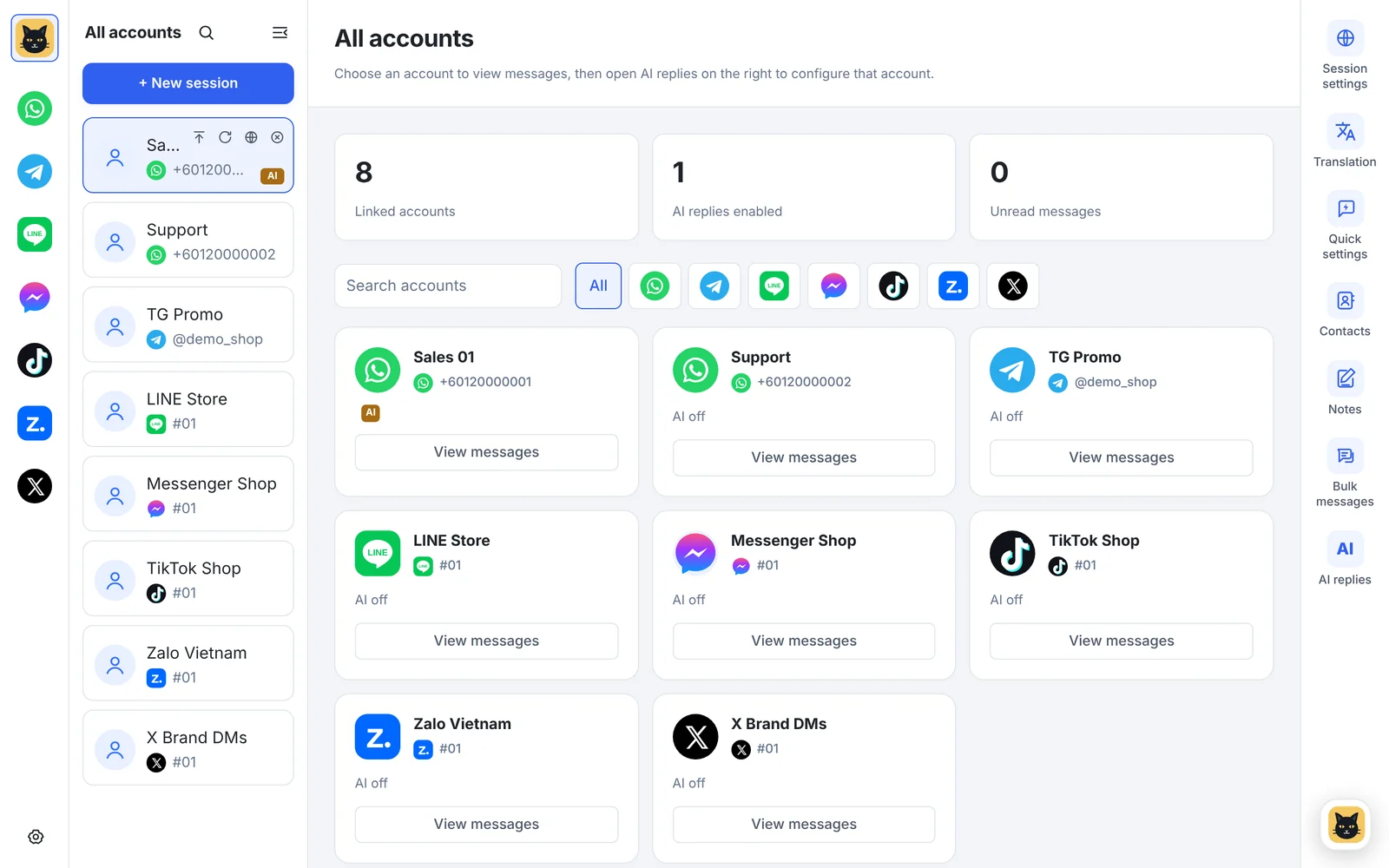
BlackCat SCRM supports account defaults and per-customer translation settings. Set your common language first. For a customer needing another language, enable per-contact translation, open that conversation and adjust the settings. Check the account, customer and scope shown in the panel before making a change.
You can also record a customer's stated language preference in their notes for colleagues taking over the conversation. Use preferences the customer has expressed rather than guessing from their name or location.
Start with your own test conversation
Before using the flow with customers, try a greeting, a reply containing a quantity or amount, and a reply containing a delivery condition. Check that the shortcut only translates and that Enter sends the text you intended.
If a translation was not placed in the editor successfully, inspect the message and current text before continuing. Once your usual language, provider and shortcut work together as expected, introduce the flow to your team.
A practical starting point is to write a clear original, check the essential details in the translation, and confirm the send. The translation shortcut provides a place for that review.
Sources
Checked on 31 October 2026 against local v1.14.8 source and the project's published material. Labels and behavior may change in later versions.