Both directions
Incoming messages appear in your language; outgoing replies go out in the customer's.
BlackCat translates the messages you receive and the replies you send, in 65 languages, so you can sell in any market without copying text into a translator.
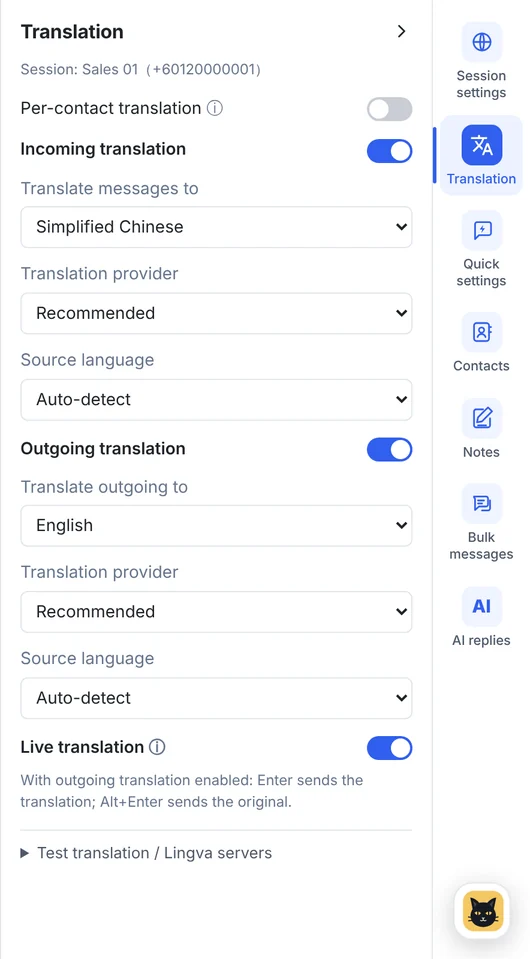
Real screen from v1.14.5 with sample data
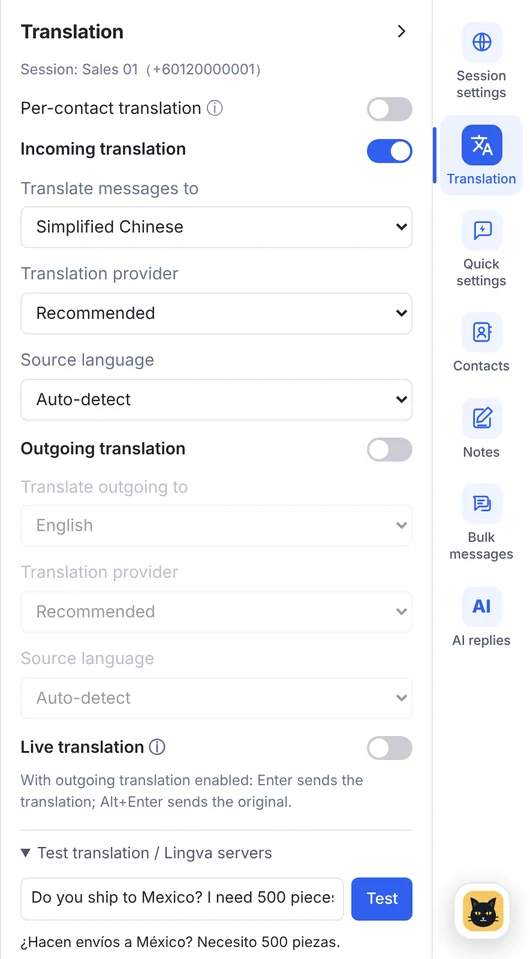
Type a sentence to see how it will be translated before you switch translation on for real chats.
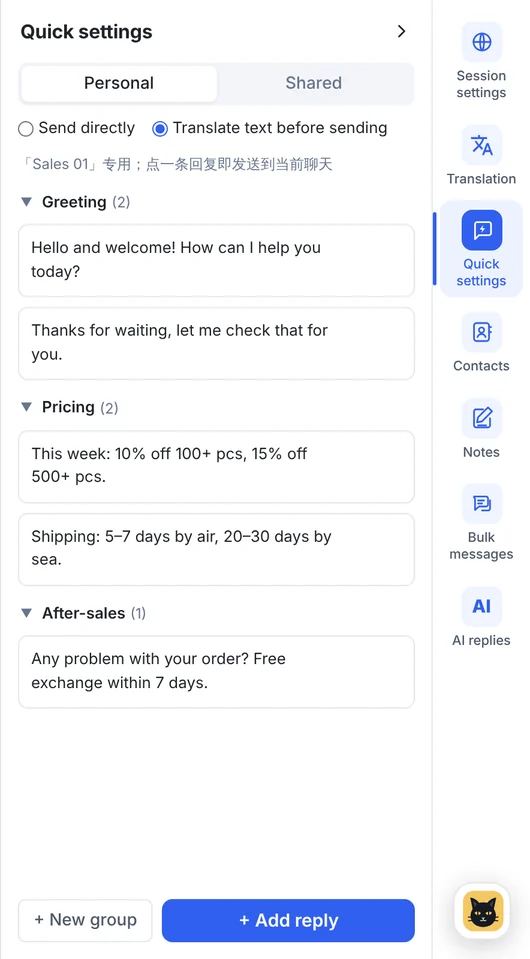
Choose "translate before sending" and your saved replies go out in the customer's language too.
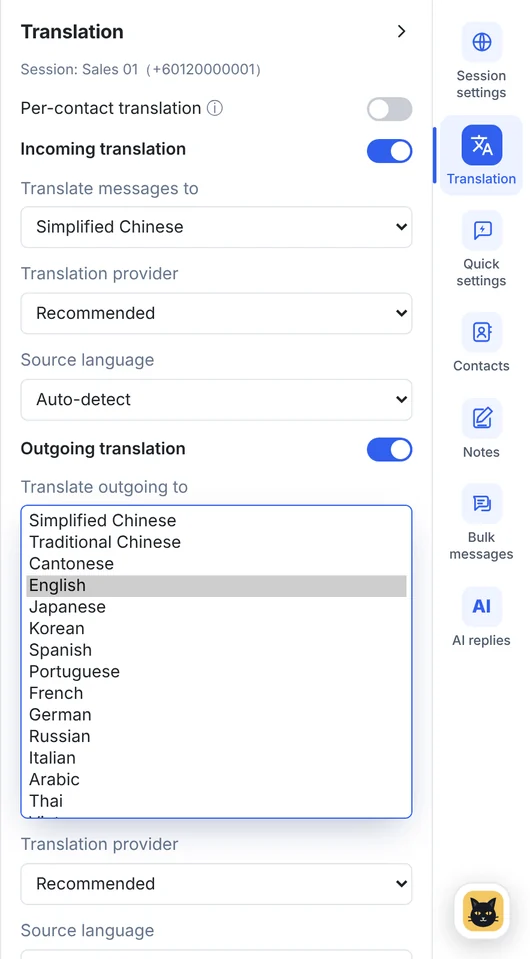
Pick the customer's language from the list: Chinese, Cantonese, English, Japanese, Korean, Spanish, Portuguese, Arabic, Thai, Malay, Tamil and many more.
Incoming messages appear in your language; outgoing replies go out in the customer's.
Set one language pair for an account, or a different one for each customer.
Messages are translated the moment they arrive, so you read the conversation as it happens.
Enter sends the translation and Alt+Enter sends your original. Or switch on the translation shortcut (Ctrl+T by default) to put the translation in the box first, then send it with Enter.
AI, Google and Lingva translation, with automatic fallback so a message always goes out.
Chinese, Cantonese, English, Malay, Tamil, Thai, Vietnamese, Indonesian, Arabic, Spanish, Portuguese, Swahili and many more.
From the right-hand tool bar on any account.
Choose your language and the customer's, or let it detect.
Read and type in your own language; BlackCat does the rest.
Message translation is on every plan. Real-time translation is included from Pro. Google translation never uses AI points; AI translation uses a small amount per message. See plans →
65, including Simplified and Traditional Chinese, Cantonese, English, Malay, Tamil, Indonesian, Thai, Vietnamese, Filipino, Japanese, Korean, Hindi, Arabic and many European and African languages.
No. It is included in every plan. AI translation uses AI points; Google translation doesn't, and BlackCat switches to Google automatically if your points run out.
Yes. The translation preview shows above the typing box, and Alt+Enter sends your original text instead. Since version 1.14.6 you can also turn on "Use translation shortcut": Ctrl+T (or a combination you choose, saved per account) puts the translation in the typing box so you can check or edit it, and Enter sends it.
Download the Windows client, or tell us how many accounts you run and we'll recommend a plan.