Features

Everything you need to sell on chat

BlackCat SCRM combines a multi-account messenger, a translator, an AI reply assistant and sales tools in one Windows app. All screenshots are real screens from the app, with sample data.

Many accounts, one window

All your chat accounts side by side

Click "New session", pick a platform and scan the QR code. Every account signs in separately and runs in its own isolated session, so they never mix.
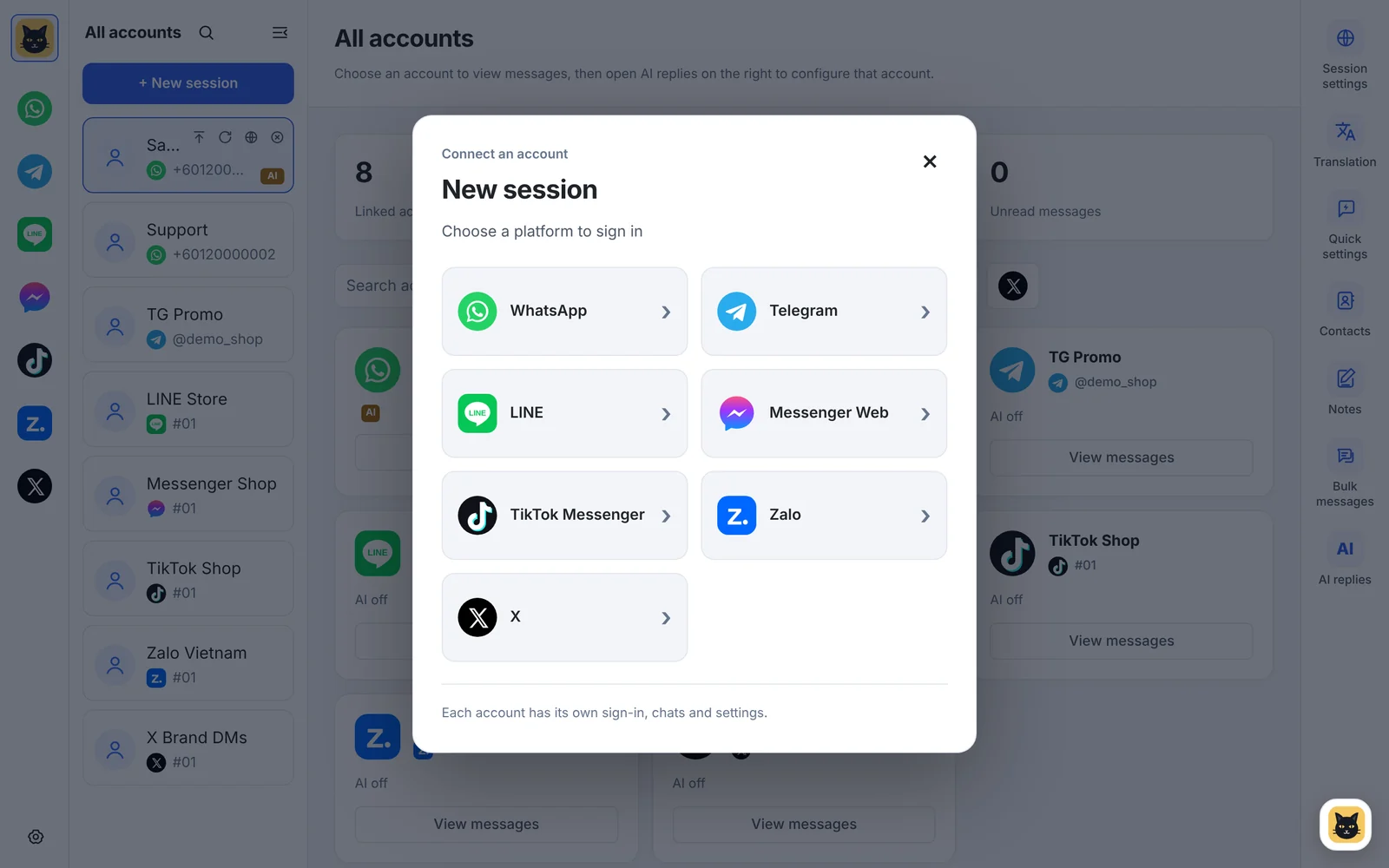
  • WhatsApp, Telegram, LINE, Facebook Messenger, TikTok Messenger, Zalo and X
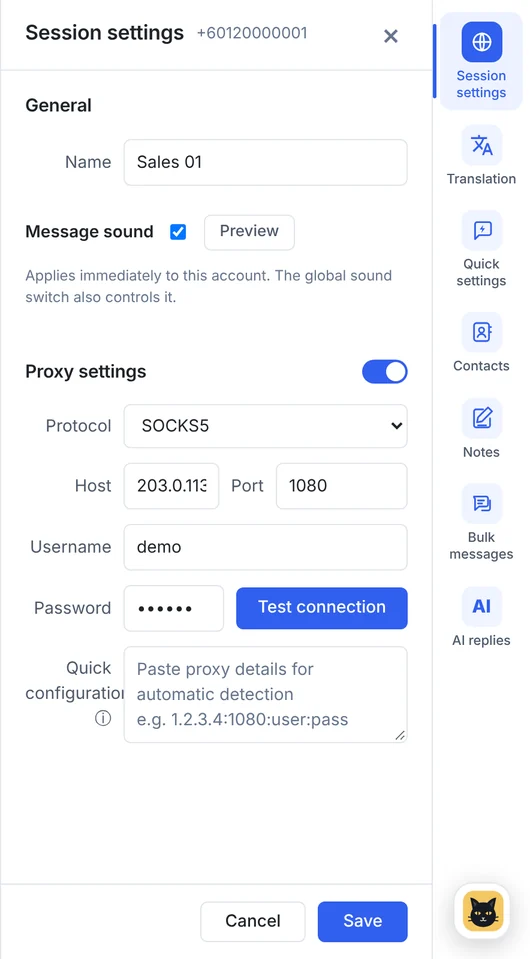
  • Per-account proxy (SOCKS5 / HTTP) and environment settings
  • Unread counts on every account and a home screen with login and AI status
  • Pop-up alerts for new messages: sender and preview, up to 3 stacked, newest on top (previews can be turned off)
  • 9 message sounds, for every account or one per account
  • Reopening the app restores your logins where the platform allows it
More about multi-account
New session
New session dialog listing WhatsApp, Telegram, LINE, Messenger Web, TikTok Messenger, Zalo and X
Translation

Talk to customers in 65 languages

Translate the messages you receive and the replies you send. With send translation on, press Enter to send the translation or Alt+Enter to send your original text.
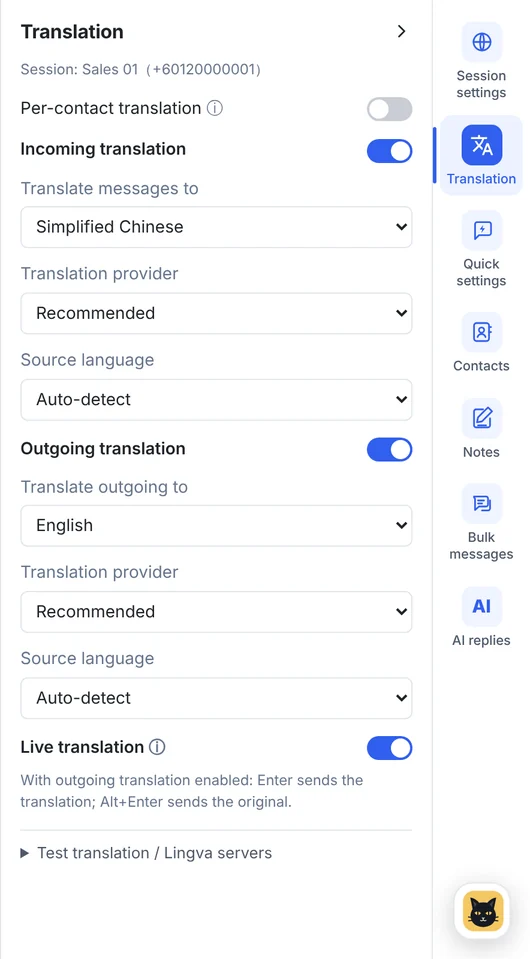
  • Separate settings for received messages and outgoing messages
  • Per account, or per customer with "customer-specific translation"
  • Real-time translation as messages arrive
  • Several translation routes (AI, Google, Lingva) with automatic fallback, so messages always go out
  • 65 languages: Simplified and Traditional Chinese, Cantonese, English, Malay, Tamil, Indonesian, Thai, Vietnamese, Filipino, Japanese, Korean, Hindi, Arabic, Spanish, Portuguese, French, German, Russian, Swahili and many more European, Asian and African languages
More about translation
Translation settings
Translation settings with history message translation to Simplified Chinese, outgoing translation to English and real-time translation
AI auto-replies

An AI that answers from your own product knowledge

Build a knowledge base, let the AI learn it, and turn on auto-replies for any account. The AI studies your material and writes the replies in your style.
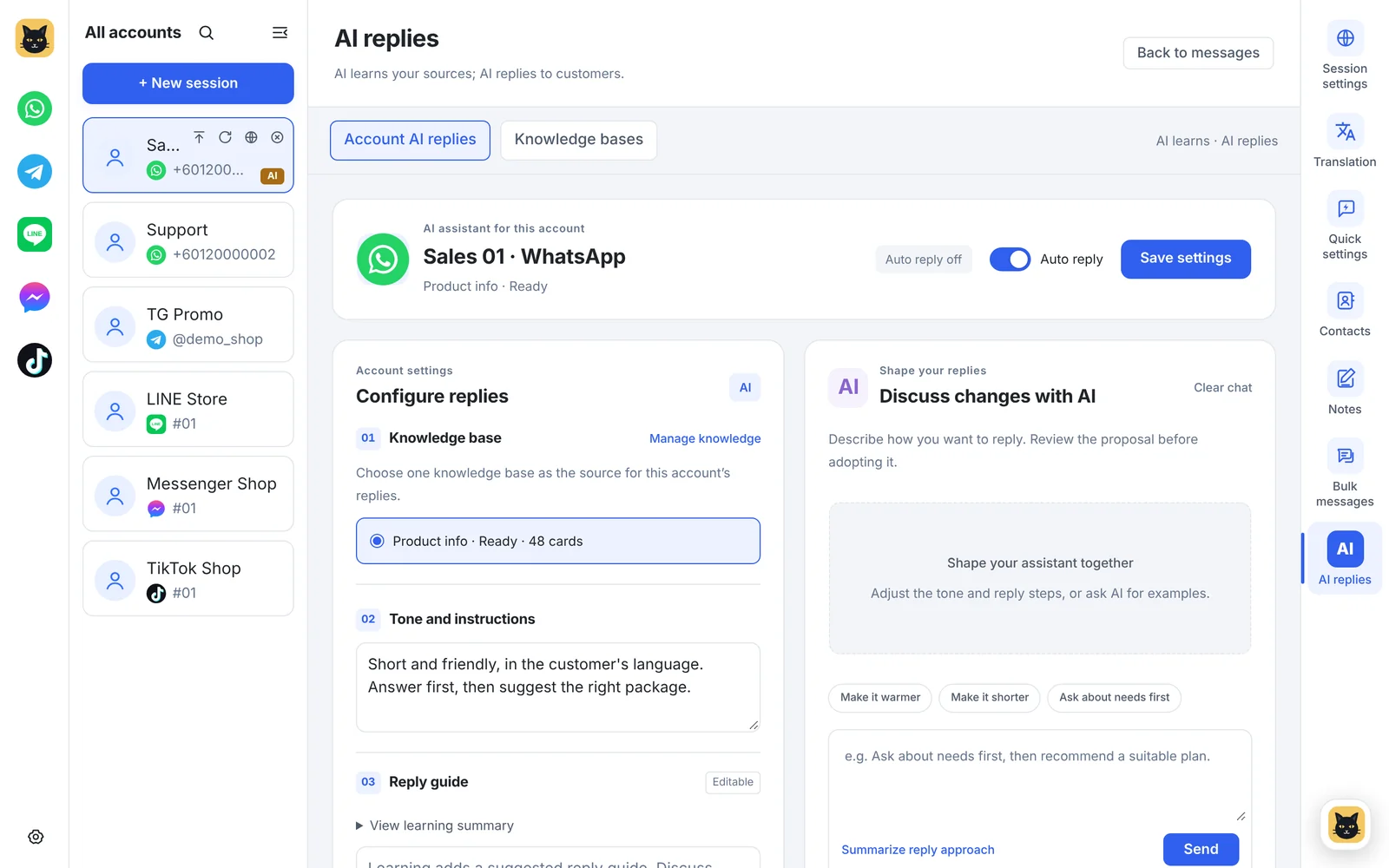
  • Learn from text, web links, files (Excel, PDF and more), audio and video, Google Sheets or an API
  • Refine the reply style by chatting with the AI, then test with real questions; tests are never sent to customers
  • Waits a few seconds for customers to finish typing, with a daily reply limit you set
  • Hands off to a human, with a hand-off message, when the knowledge base doesn't have the answer
  • One knowledge base per account, shared across as many accounts as you like
More about AI auto-replies
AI replies
AI reply setup for a WhatsApp account: knowledge base, reply style, reply instructions and a chat to refine replies
BlackCat Assistant

Ask it, or tell it what to do

Click the cat in the corner to open the assistant. It knows the app, so it can explain a feature or just do the job for you.
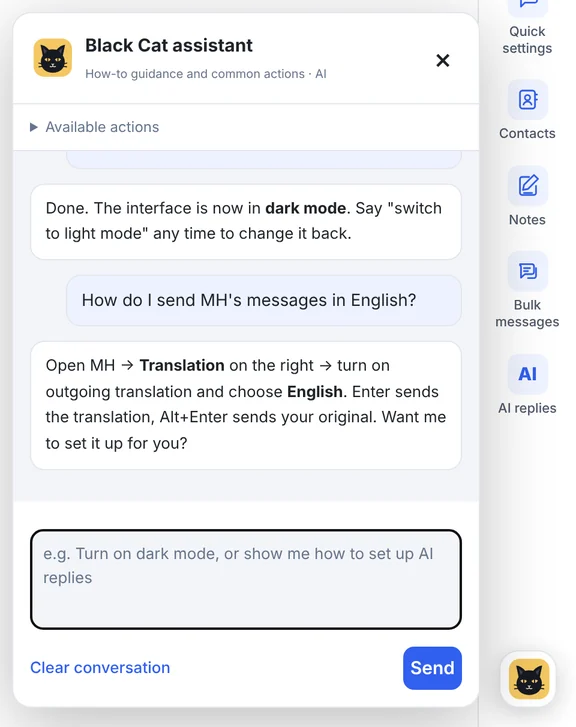
  • Answers how-to questions with short steps
  • Changes settings: "switch to dark mode", "mute Amy's chime"
  • Reads a chat, including photos and group senders, and suggests a reply you can drop into the typing box
  • Prepares bulk lists and tasks: "make a list from MH's last 5 WhatsApp chats, don't send yet"
  • Shows a confirmation card before anything is sent or deleted
More about the assistant
BlackCat Assistant
BlackCat Assistant chat panel
Bulk messaging

Reach your customer lists in a few clicks

Send announcements, new arrivals and follow-ups to the customers who asked to hear from you, on WhatsApp and Telegram.

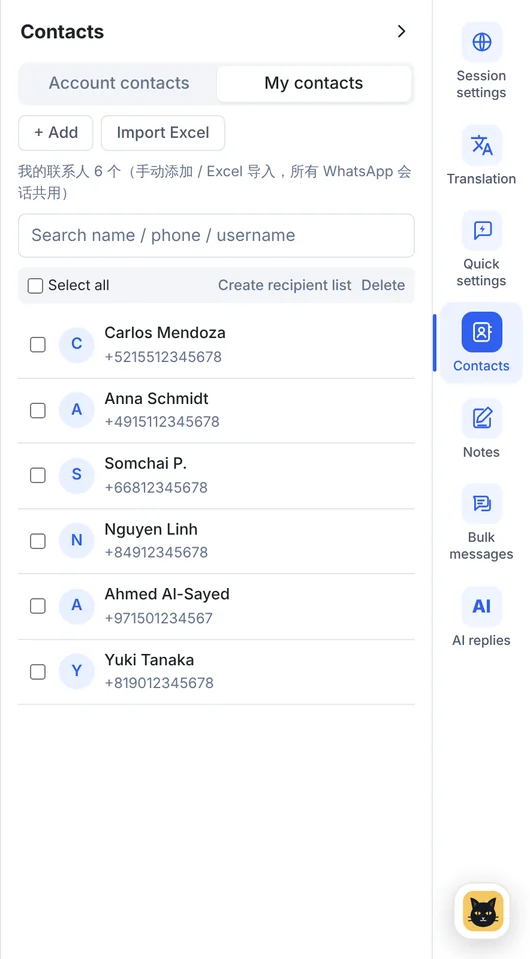
  • Recipient lists from recent chats, typed in, or imported from Excel (template included)
  • Message templates with the customer's name as a variable, and a preview before sending
  • Send from one or several accounts with an interval you choose, from 1 second to 5 hours
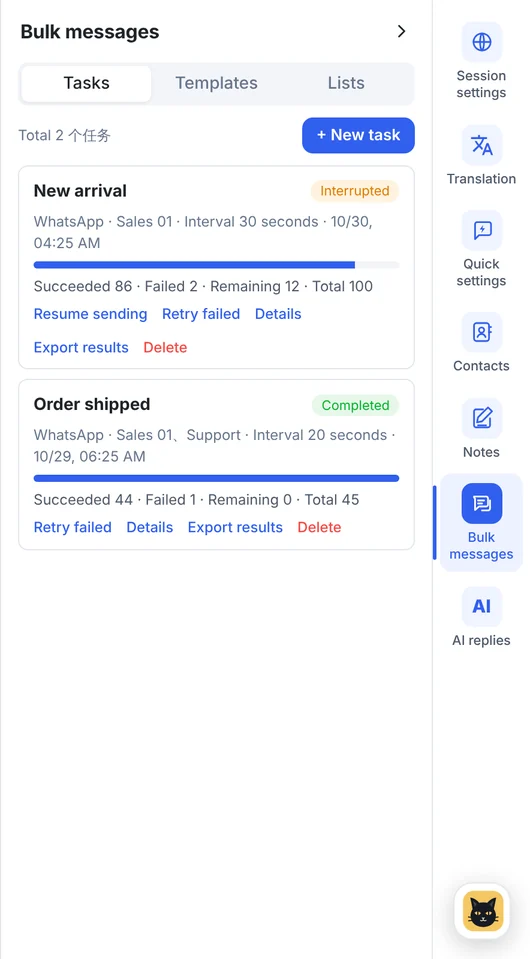
  • Live progress, retry for failed messages, and exportable results
More about bulk messaging

Message only people who have agreed to hear from you, and follow each platform's rules.
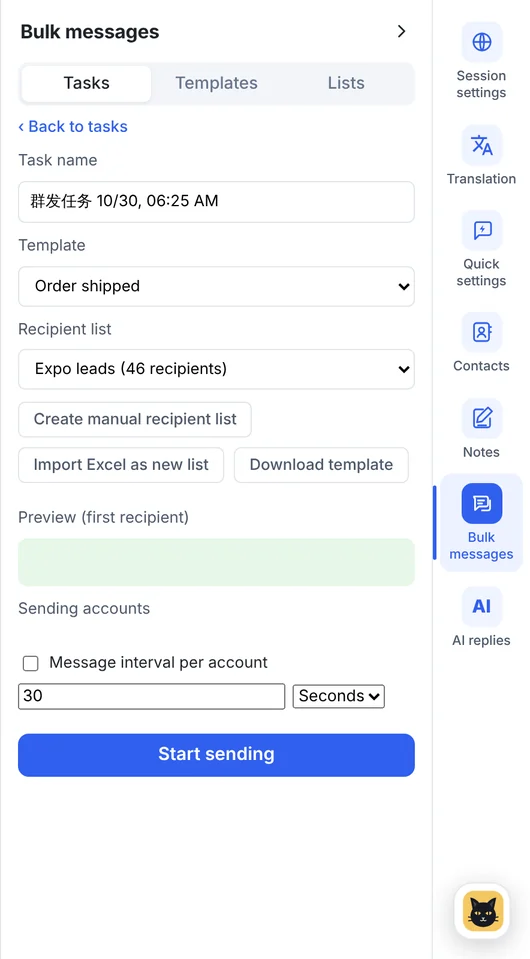
New bulk task form with template, recipient list, preview, sending accounts and interval
Bulk task list showing progress, successes, failures and export
Local chat backup

Your chats, saved on your own computer

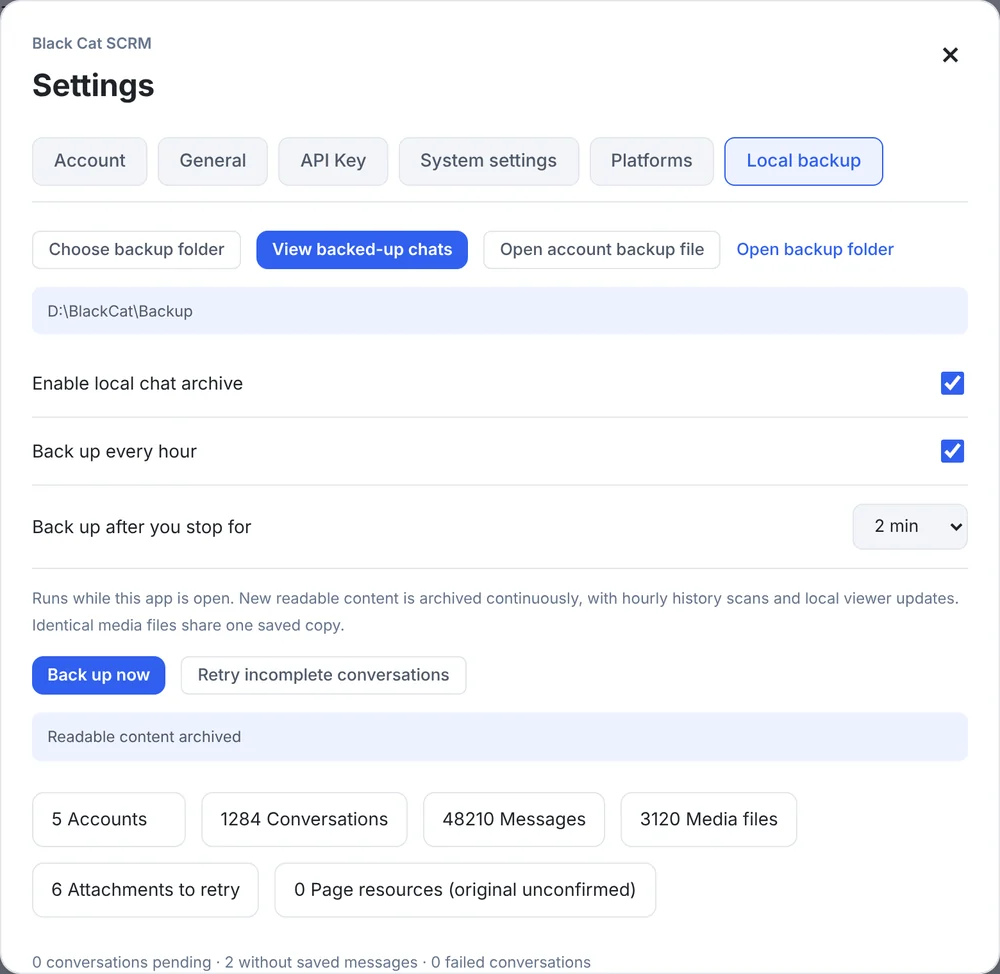
Choose a folder and BlackCat SCRM archives your chats and media every hour while it runs. Nothing is uploaded to us.

  • Hourly automatic backup, or back up now
  • Waits until you've stopped working for a while (1–30 minutes) before backing up
  • Skips chats with unread messages, so customers never see "read" on messages you haven't seen
  • Built-in viewer: search by customer name, number or username
  • One .blackcat file per account that opens on any computer with BlackCat installed
  • Backups of deleted accounts are kept until you remove them
More about local backup
Settings · Local backup
Local backup settings: choose backup folder, view backed-up chats, open account backup file, hourly backup
New in v1.16.0

Save the important parts of a chat to the customer's notes

Right-click a message, photo, video, voice note or file in WhatsApp, Telegram or Messenger and choose "Save to notes". It goes into that customer's notes with who sent it and when, so prices, quotations and promises are easy to find later.
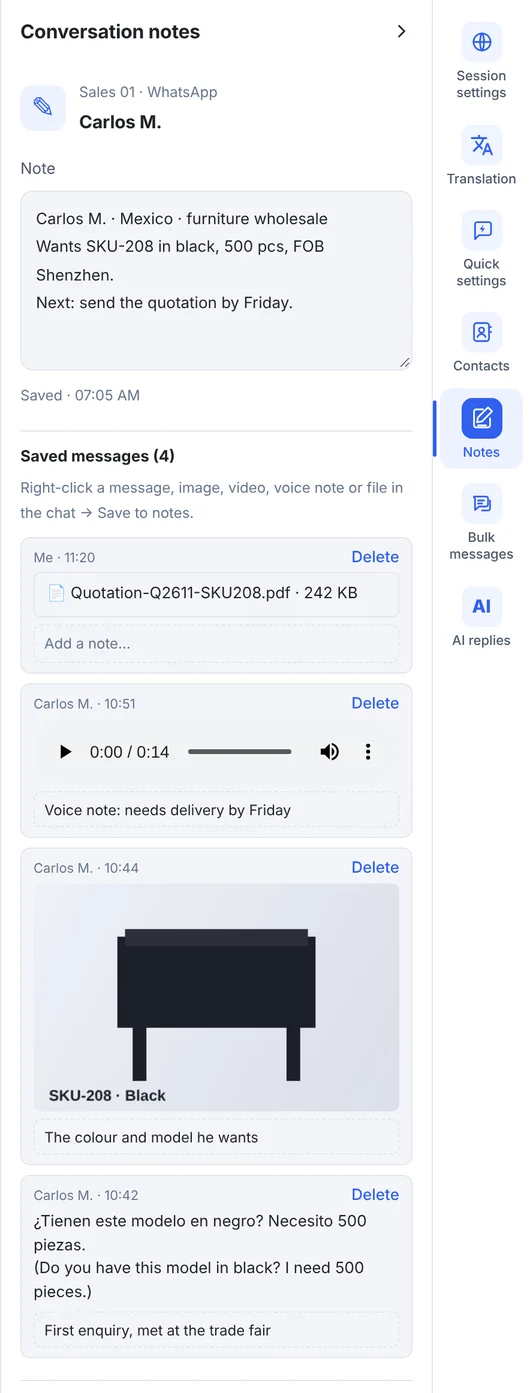
  • Text, photos, videos, voice notes and files
  • Your own note on every saved item
  • Play videos and voice notes and open files right from the notes panel
  • Stays on your computer and is never sent to the customer
Notes · Carlos M.
Notes panel with a typed note and saved items: a message, a product photo, a voice note and a quotation file
And more

Everyday tools next to every chat

Open them from the tool bar on the right. They stay open as you switch between accounts.
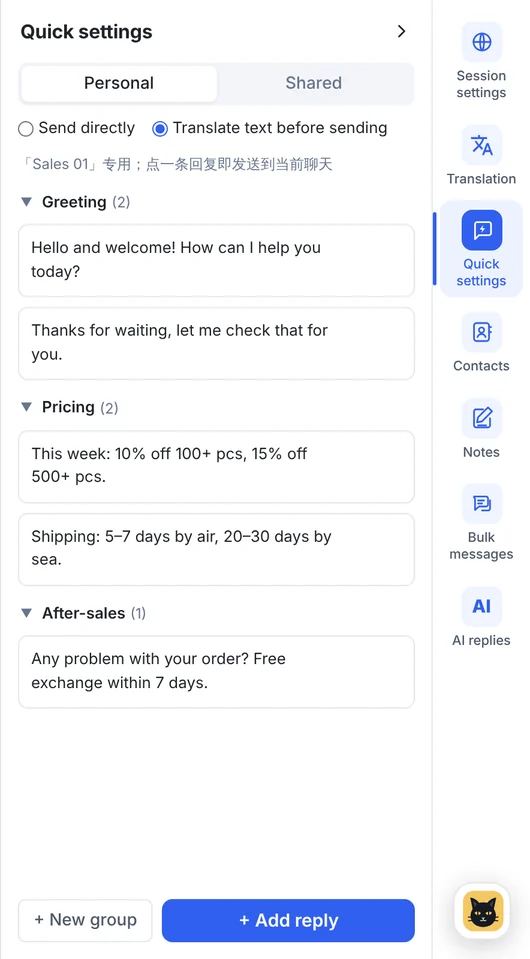
Conversation notes

Save customer details and follow-ups on each chat. The right note shows up when you switch customers.

Chinese & English, light & dark

Switch the interface language and theme, zoom the page, and choose which platforms appear and in what order.

Automatic updates

New versions download in the background and install when you restart. No reinstalling.

Download the Windows client →

See BlackCat SCRM with your own accounts

Book a live demo or tell us how many accounts you run, and we'll set you up on the right plan.