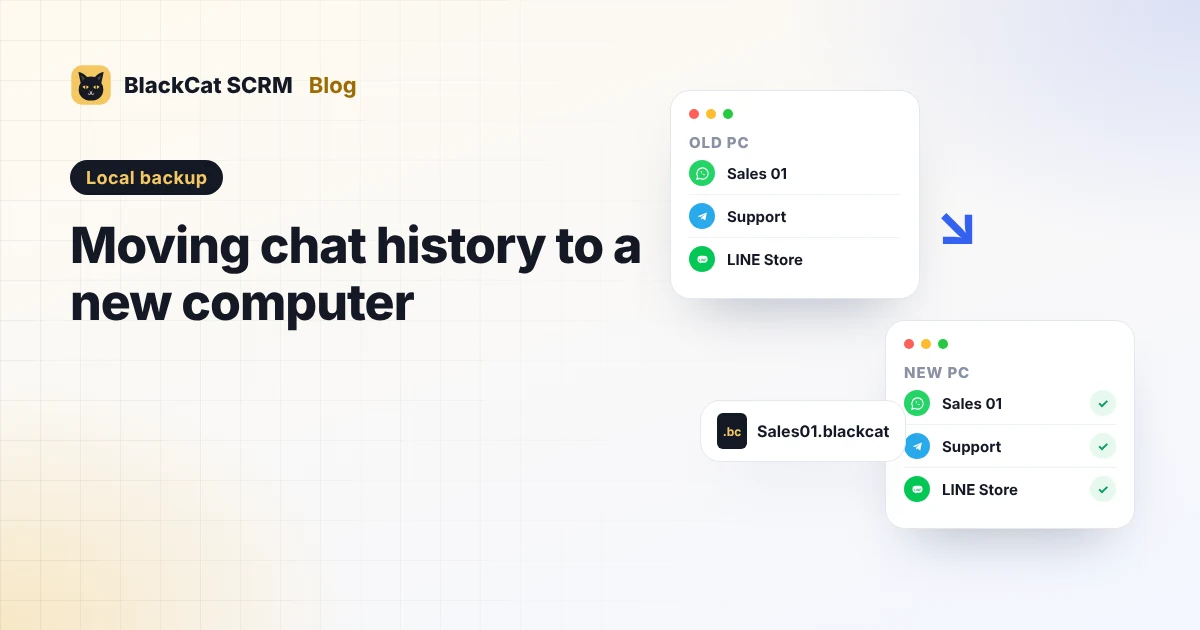
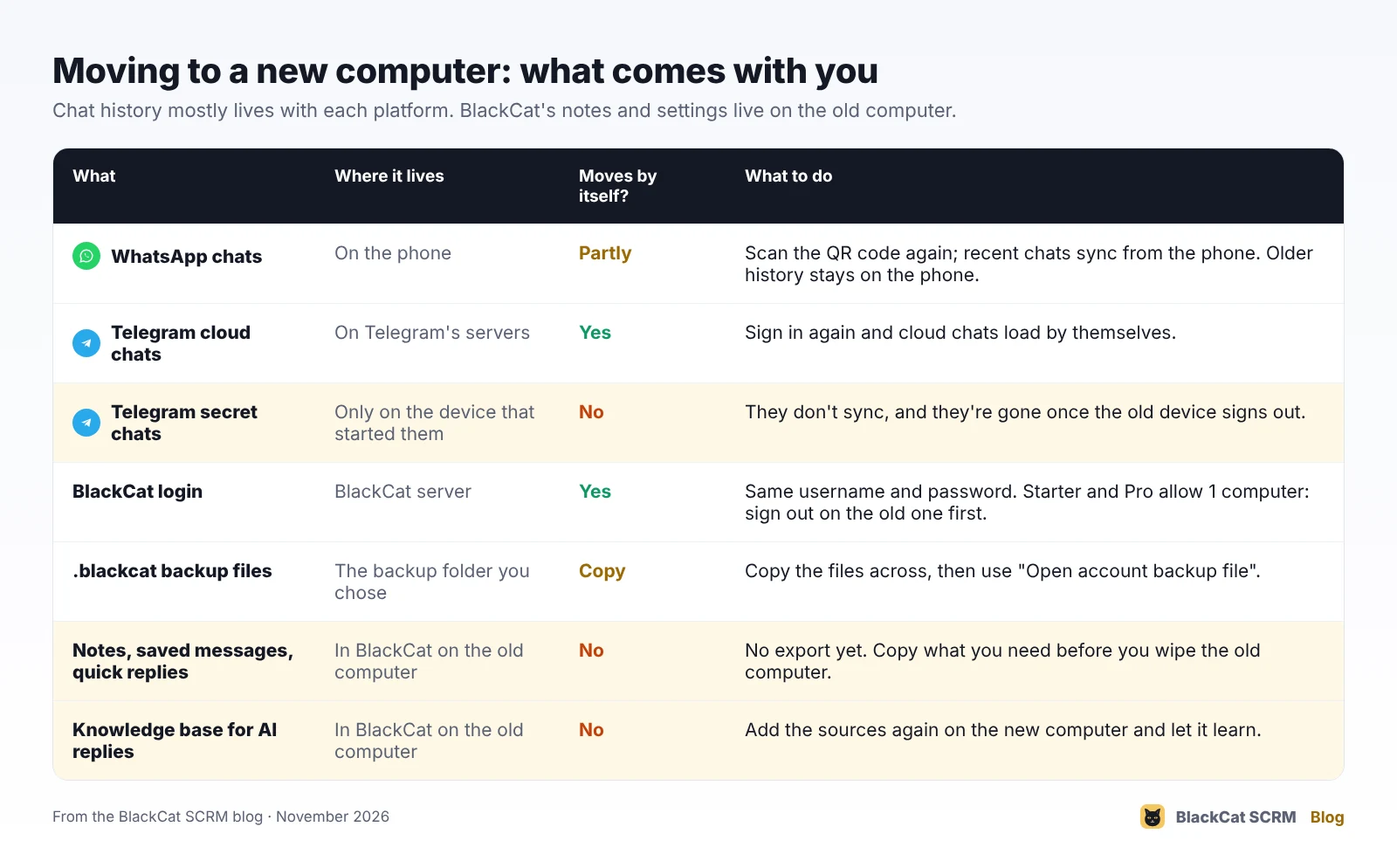
Short answer: chat history mostly lives with the platform, not the computer. WhatsApp keeps it on your phone and syncs recent chats when you scan the QR code on the new PC. Telegram's cloud chats load by themselves when you sign in, but Secret Chats stay on the device that started them. What doesn't move by itself is what's stored on the old computer: in BlackCat SCRM that's your local backups (copy the .blackcat files across), customer notes, quick replies and the AI knowledge base. Copy those before you wipe the old machine.
Where does chat history actually live?
Before moving anything, it helps to know where each piece is kept, because that decides whether it follows you or not.
- WhatsApp keeps your chats on your phone. WhatsApp Web, WhatsApp Desktop and apps like BlackCat are linked devices: when you link one, a copy of your recent chats is synced from the phone. You can have up to four linked devices at once.
- Telegram keeps normal chats in its cloud, so any device you sign in to shows the same history. Secret Chats are the exception: they're end-to-end encrypted and tied to the device where they were started.
- Anything your chat software adds, such as notes about a customer, saved quick replies, translation settings or a local archive, sits on the computer it was set up on, unless the software syncs it somewhere.
What should I do on the old computer first?
Don't hand the old machine to IT for wiping until you've done these:
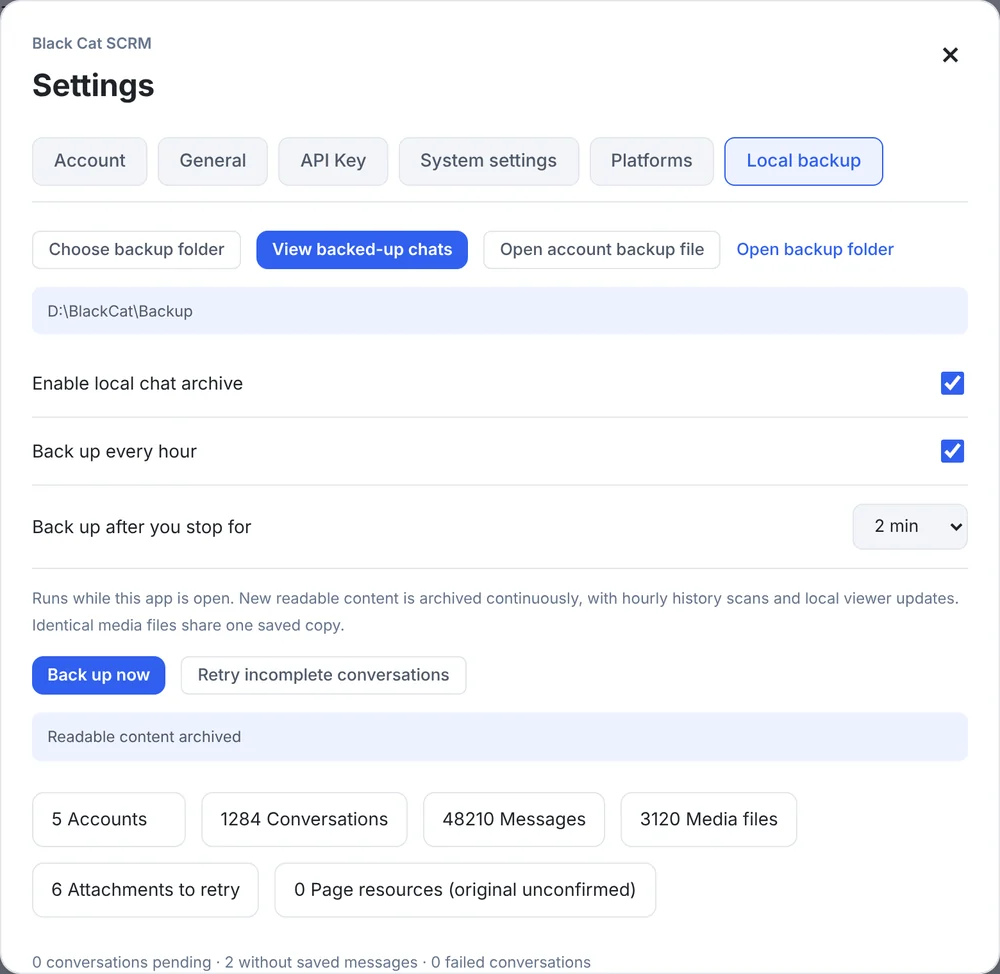
- Run one last backup. In BlackCat, open Settings → Local backup and press Back up now, then wait until the counts stop changing. Each account has its own
.blackcatfile in the folder you chose. - Copy the backup folder to a USB drive, a second disk or your company's shared drive. This is also the copy you want to keep for the long term, not just for the move.
- Copy your quick replies and notes that matter. There's no export for these in BlackCat yet, so paste the important templates and the notes on open deals into a document. A team that writes notes well will find this takes longer than expected, so leave time for it.
- List your accounts: platform, number or username, which phone each WhatsApp account runs on, and any per-account proxy settings.
- Sign out of BlackCat on the old computer if you're on the Starter or Pro plan (see the plan limit below).
How do I move WhatsApp chats?
You don't move them as such. You link the new computer to the same phone:
- Keep the phone that runs the account charged and online.
- On the new computer, add the account again and scan the QR code from the phone (Linked devices → Link a device).
- Give it a few minutes on a good connection. Recent chats appear first; how far back the history goes is decided by WhatsApp, not by the computer.
- On the phone, log out the old computer under Linked devices so it doesn't stay connected.
Two things catch people out. First, the phone is still the anchor: WhatsApp logs linked devices out if the main phone isn't used for 14 days, so don't put the sales phone in a drawer. Second, if you're also changing phones, that's a separate job done with WhatsApp's own chat backup on the phone. A WhatsApp "Export chat" file is a text copy for your records; WhatsApp says it can't be imported back as chat history.
How do I move Telegram chats?
Sign in on the new computer with the phone number and the code Telegram sends to your other devices. Cloud chats, groups and channels load by themselves.
Secret Chats don't come across. If a conversation in a Secret Chat matters, save what you need on the old device before you sign it out. For records, Telegram Desktop can export chats as HTML or JSON (Settings → Advanced → Export Telegram data, or Export chat history from a chat's menu).
How do I set up BlackCat SCRM on the new computer?
The installer gives you the app, not the old computer's accounts, chats or knowledge base. The order that works:
- Install BlackCat and sign in with the same BlackCat username and password.
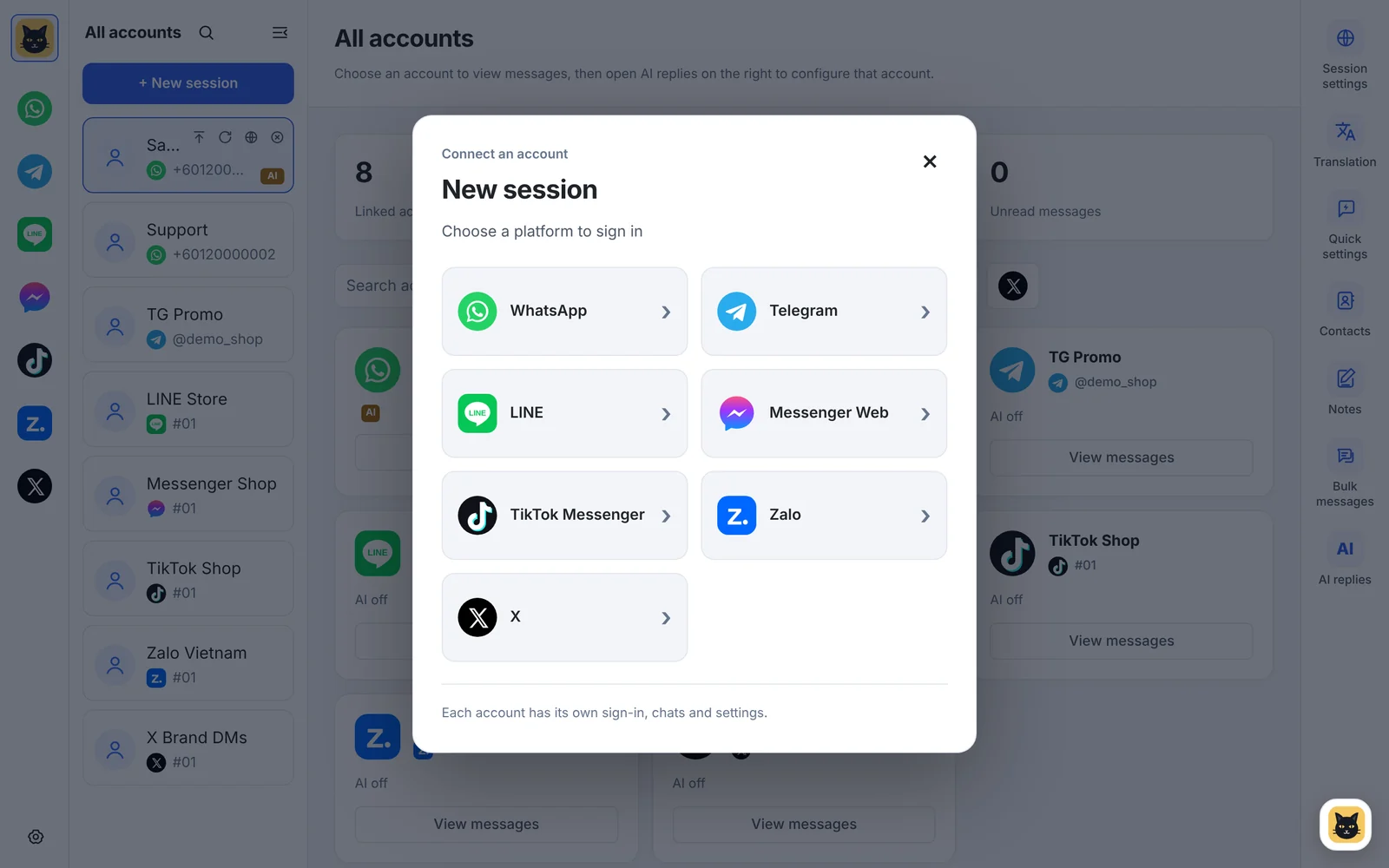
- Click New session, pick the platform and sign in to each account again: QR code for WhatsApp and Zalo, phone code for Telegram, and the usual sign-in for LINE, Messenger, TikTok and X.
- Put back each account's environment and proxy settings from your list.
- In Settings → Local backup, choose the backup folder on the new computer and switch on hourly backup again.
- To read old archives, copy the
.blackcatfiles over and use Open account backup file. You can search them by customer name, number or username. - Add your quick replies back from your document, and for AI replies, add your knowledge sources again and let them learn.
Will the new computer count against my plan?
It can. The Starter and Pro plans allow BlackCat on one computer, and a computer counts if BlackCat was used on it in the last 30 days. If the new one says the limit is reached, sign out on the old computer first, or contact us and we'll remove the old one. Business and Enterprise have no computer limit.
What can go wrong?
- Old WhatsApp history may not show on the new computer. The phone decides how much it syncs. Your BlackCat backup still has what it archived before, which is a good reason to keep it running.
- Media that was never downloaded isn't in the backup. Photos, voice notes and videos are only saved once the original file was downloaded.
- Notes and saved messages stay on the old computer. They live in BlackCat on the machine where they were written, so copy them before the old one is reset.
- Platforms may ask you to verify again. A new computer looks like a new device to them, so have the phones and codes to hand.
Sources
- WhatsApp Help Center: About linked devices.
- WhatsApp Help Center: How to export your chat history.
- Telegram: Telegram FAQ (cloud chats and Secret Chats) and data export.
- BlackCat SCRM user guide: installation, local backup and plans.
FAQ
Do I need to scan the WhatsApp QR code again on a new computer?
Yes. A new computer is a new linked device, so each WhatsApp account is linked again from its phone. Recent chats then sync from the phone.
Can I open my old BlackCat backups on the new computer?
Yes. Copy the account's .blackcat file across, install BlackCat and use "Open account backup file". It holds the account's backed-up customers, messages and downloaded attachments.
Do customer notes and quick replies move by themselves?
No. They're kept in BlackCat on the computer where they were made, and there's no export yet. Copy the ones you need before you change computers.
Can I use BlackCat on both computers while I switch?
On Business and Enterprise, yes. Starter and Pro allow one computer, so sign out on the old one first or ask us to remove it.