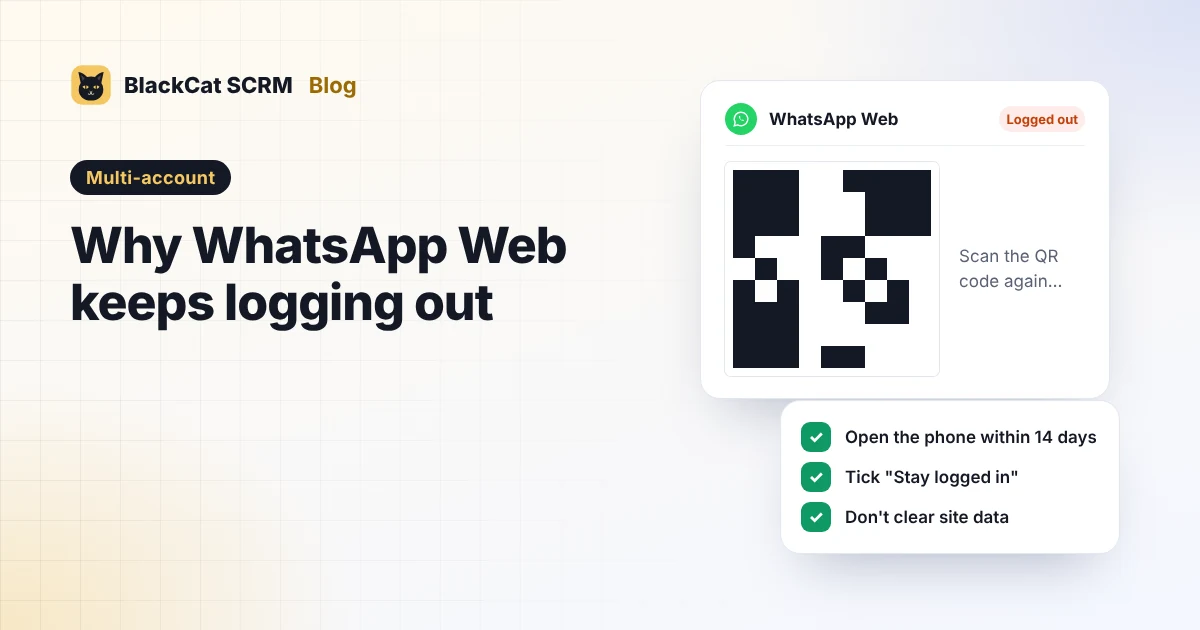
Short answer: WhatsApp Web is a linked device, and it stays signed in only while the phone stays in use. The usual causes are the phone not being used for 14 days (WhatsApp's current help pages; an older page says 30), "Stay logged in on this browser" being unticked, cleared browser data, the device being removed from the phone, the number being re-registered or logged out for security, and the four-device limit. Keep every phone charged, online and opened at least every couple of weeks, and keep each account in its own browser profile or app session. BlackCat SCRM gives each account its own session and restores saved logins when it reopens, but it can't stop WhatsApp from logging out a device.
How does WhatsApp Web stay signed in?
WhatsApp Web, the desktop app and any multi-account tool that uses WhatsApp Web are all linked devices. Your phone is the primary device. Linked devices can keep working while the phone is off or offline for a while, but they depend on the primary phone staying active. WhatsApp lets you link up to four devices to one phone at a time.
So when every computer on one number logs out at once, look at the phone first. When only one browser or computer logs out, look at that computer.
What are the common causes?
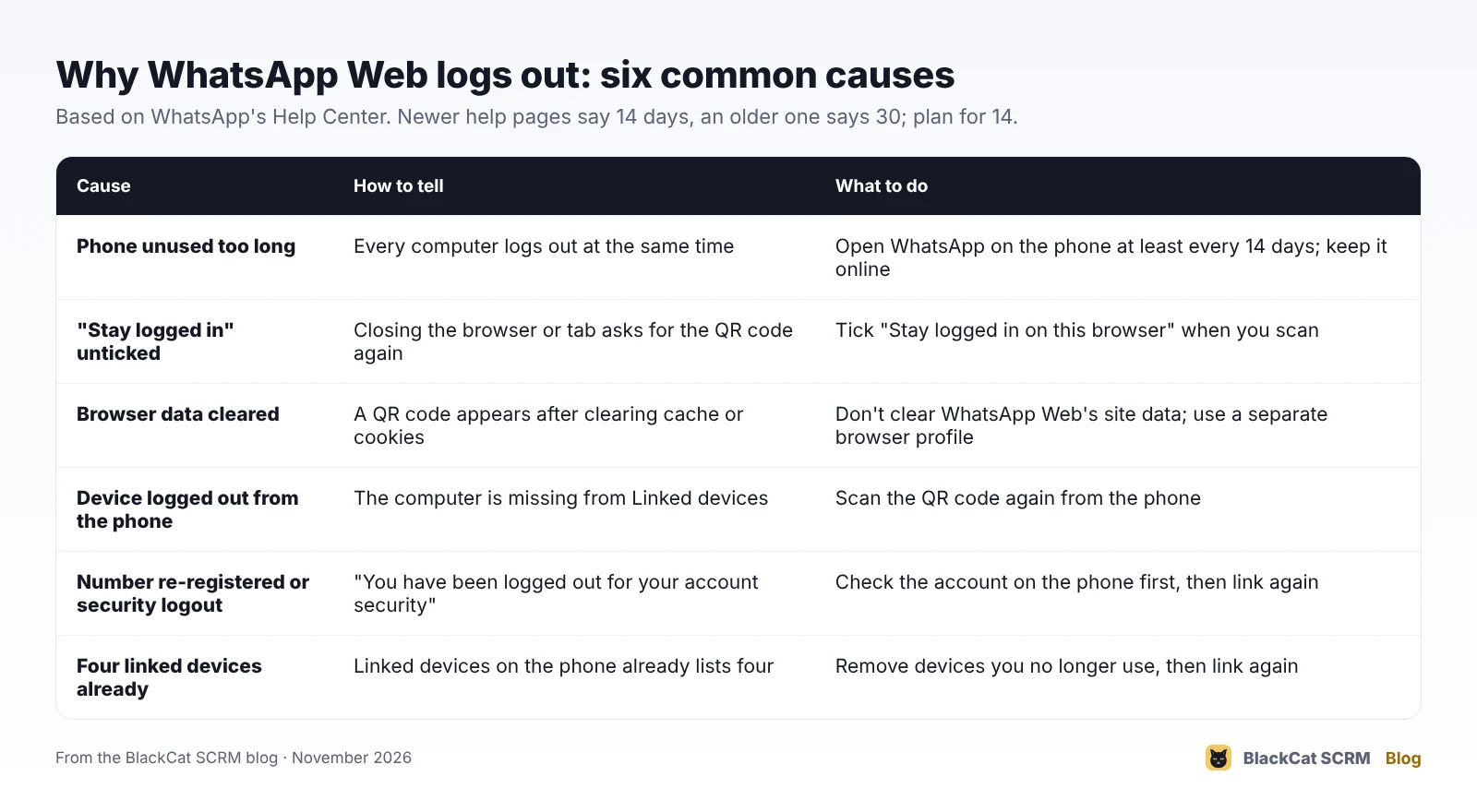
- The phone hasn't been used for too long. WhatsApp's current help pages say linked devices are logged out if the primary phone isn't used for over 14 days; an older page says 30 days. Plan for 14. This is the usual cause on numbers whose phone sits in a drawer.
- "Stay logged in on this browser" was unticked. When you scan the QR code, WhatsApp Web shows this option. If it's unticked, the session ends when you close the tab or browser.
- Browser data was cleared. WhatsApp Web keeps its session in the browser's site data. Clearing cookies and site data, a cleanup tool, or a browser set to delete data on exit removes it.
- Someone logged the device out from the phone. Linked devices on the phone lists every computer, and logging one out there ends its session. Check this list too if you suspect someone else has access.
- The number was re-registered or logged out for security. Registering the number again, for example on a new phone, logs out every linked device. WhatsApp can also log devices out for account security, with a message saying so.
- The four-device limit. If Linked devices already lists four, remove the ones you no longer use before linking another.
How do we keep several accounts signed in?
- Keep every phone charged, online and in use. Put the phones on chargers with Wi-Fi, and open WhatsApp on each one at least once a week. A reminder in your calendar beats discovering it on a busy Monday.
- Tick "Stay logged in" every time you link a computer.
- Leave WhatsApp's site data alone. Exclude it from cleanup tools, and don't set the browser to clear data on exit.
- One account per browser profile or app session. Switching accounts by logging out and in again in one browser is the most common source of "it keeps logging out".
- Label phones and numbers so anyone on the team can find the right phone when a QR code appears.
- Review Linked devices monthly and remove old computers.
What does BlackCat SCRM do about logouts?
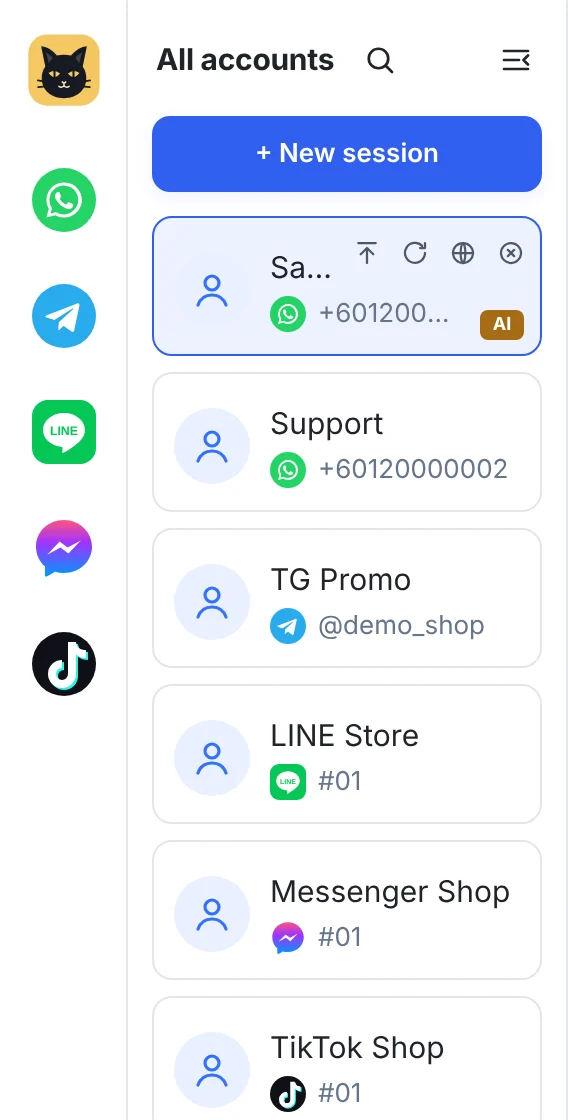
In BlackCat SCRM, each WhatsApp account signs in separately in its own isolated session in one window, with its own proxy setting if you need one. Each session is one linked device on that account's phone.
- Saved logins are restored when you reopen the app, so you don't scan every account every morning.
- You can see each account's status on the home screen with its unread count, so a signed-out account stands out instead of silently missing messages.
- Accounts don't interfere with each other. Signing in or out of one account doesn't affect the others.
Honest limits: BlackCat can't stop WhatsApp from logging out a device. If the phone goes unused, the number is re-registered or WhatsApp asks for verification, you still scan the QR code again from that phone. The phone rules above apply to every tool that uses WhatsApp Web.
Sources
- WhatsApp Help Center: About linked devices (up to four linked devices; logged out after the phone is unused for over 14 days).
- WhatsApp Help Center: About linked devices on the WhatsApp Business app.
- WhatsApp Help Center: Seeing "You have been logged out" and Seeing "You have been logged out for your account security".
- WhatsApp Help Center: How to unlink a device.
- BlackCat SCRM user guide: accounts and sessions.
FAQ
How long does WhatsApp Web stay logged in?
As long as the phone stays in use and nothing removes the session. WhatsApp's current help pages say linked devices log out when the phone isn't used for over 14 days.
Does WhatsApp Web need the phone to be online?
Not every minute: linked devices can work while the phone is offline for a while. But the phone has to be used regularly, or the linked devices are logged out.
Why did all my computers log out at the same time?
Usually the phone: it wasn't used for too long, the number was registered again, or WhatsApp logged devices out for security. Open WhatsApp on the phone first, then link the computers again.
Does BlackCat SCRM keep WhatsApp signed in forever?
No. It restores saved logins when it reopens and keeps each account in its own session, but WhatsApp's own rules still apply, so keep the phones in use.