Hourly, automatically
Backups run every hour, or press Back up now.
Choose a folder and BlackCat archives your chats and media every hour while it runs. Nothing is uploaded to us, and each account's backup opens on any computer with BlackCat installed.
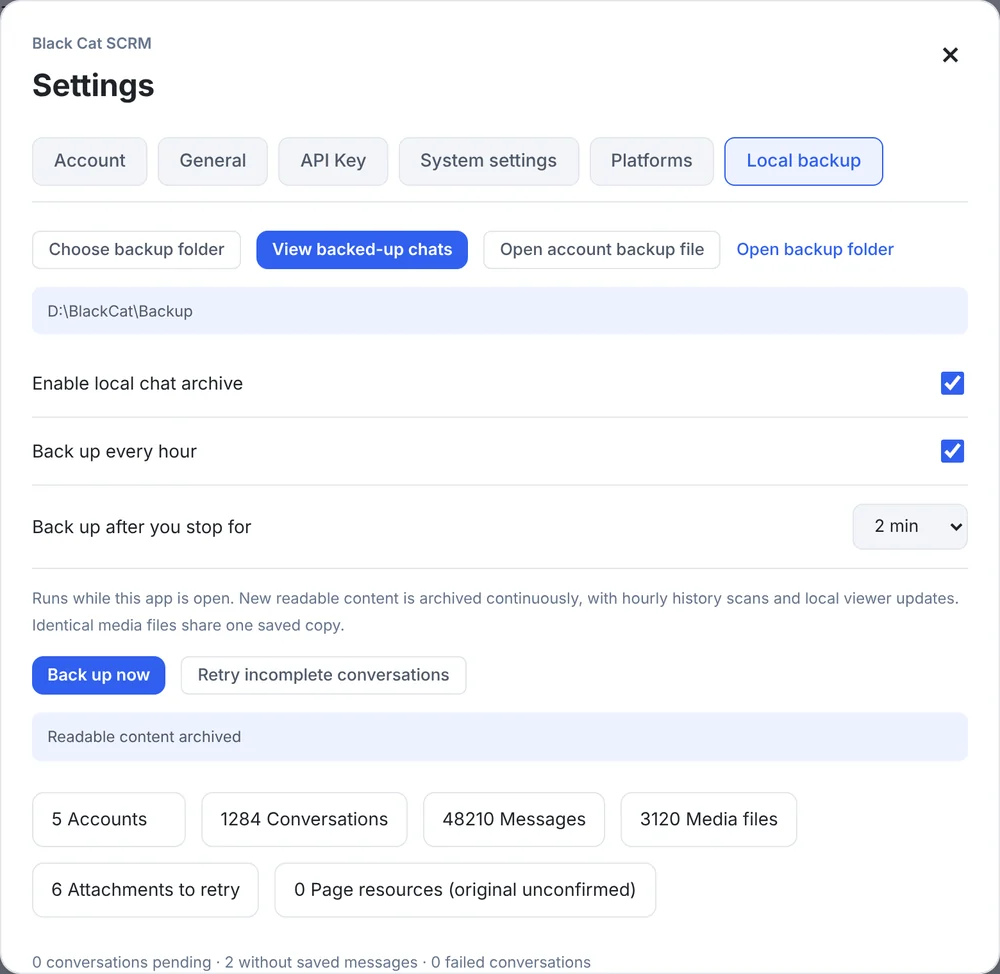
Real screen from v1.14.5 with sample data
Choose the backup folder, switch on hourly backup and decide how long to wait after you stop working.
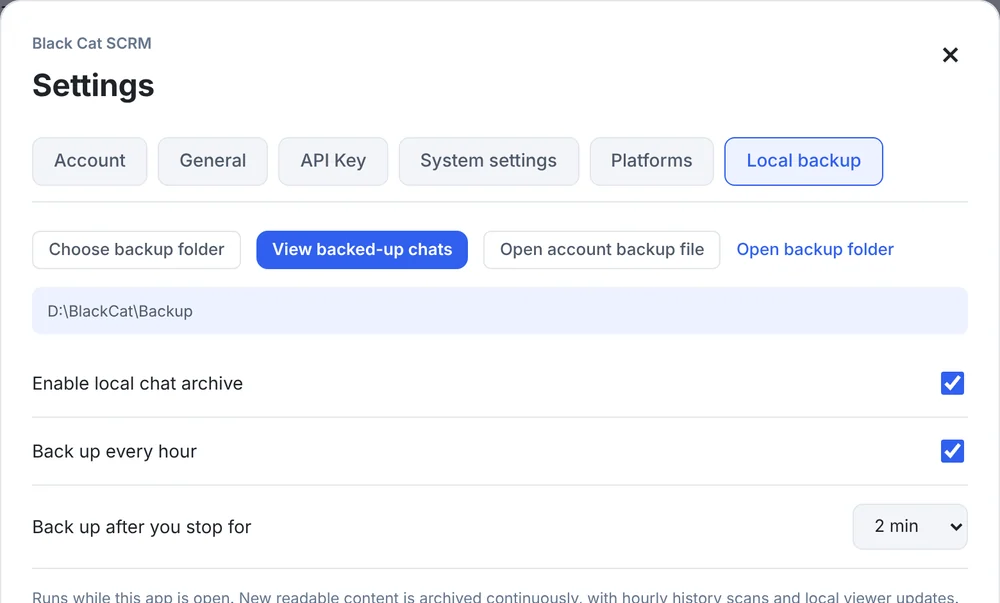
See how many accounts, chats, messages and media files are archived, and what still needs saving.
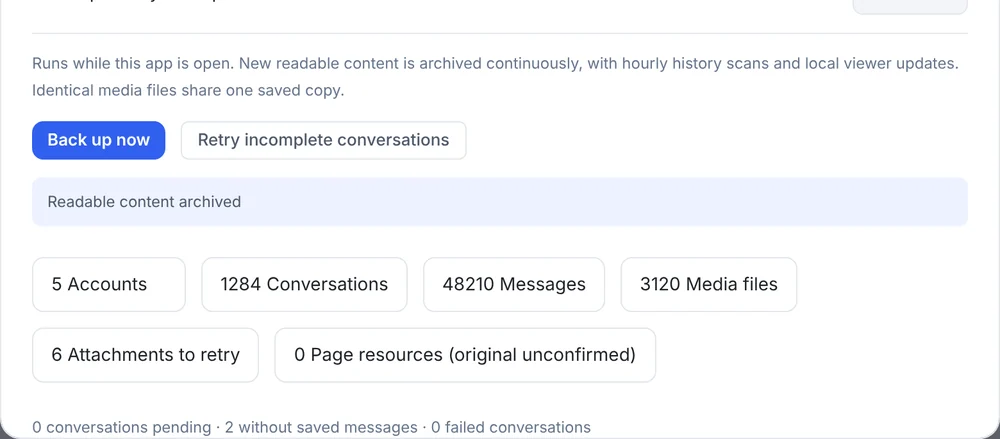
Backups run every hour, or press Back up now.
It waits until you've stopped working for 1–30 minutes before it starts.
Chats with unread messages are skipped until you've seen them.
Search by customer name, number or username and page back through older messages.
Each account becomes a .blackcat file you can open on another computer.
Backups of deleted accounts stay until you remove them.
In Settings → Local backup.
Set how long to wait after you stop working.
Open View backed-up chats, or a .blackcat file.
Local backup is on every plan. See plans →
In the folder you choose on your own computer. Nothing is uploaded to Transfomind.
It saves what the platform's web version can load and what can be downloaded at the time, so very old history or some originals may be missing. Keep important records elsewhere too.
Yes. Install BlackCat and use "Open account backup file" on the account's .blackcat file.
Download the Windows client, or tell us how many accounts you run and we'll recommend a plan.